

How Do I Access Usage Statistics For All Of My Member Accounts?
How Do I Manage Users For My Member Accounts?
How Do I Curate the Comics Plus Collection For My Member Accounts?
How Do I Lock the Changes I Have Made To My Member Account(s) Collection?
Not Finding What You’re Looking For?
How Do I Access Usage Statistics For All Of My Member Accounts?
Log into your Admin Portal. Under "Institution Reports" you can access Usage Statistics for all of your libraries/member accounts.
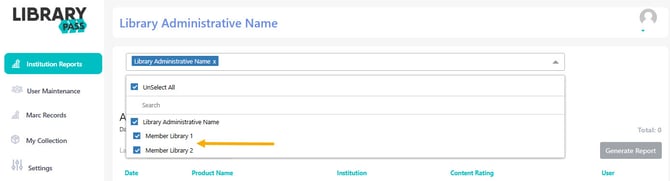
You can see how many member accounts you are viewing statistics for by the number indicated in the search bar.
-
By default, all of your member accounts will be selected to show all of their usage at once.
-
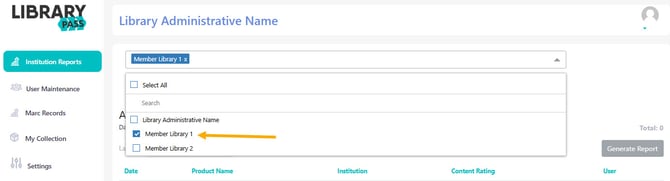
You can look at individual member account usage by selecting the individual member account only.
Note: For more information on Usage Reports, visit: How to Read the Usage Statistics Report.
How Do I Manage Users For My Member Accounts?
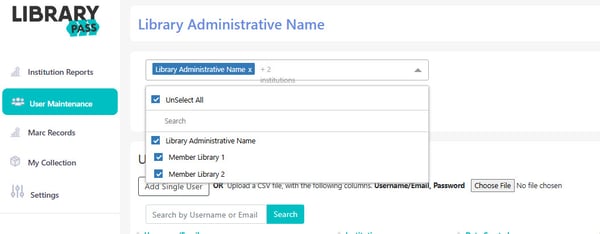
You can manage users for all of your libraries/member accounts under “User Maintenance.”
-
By default, all of your member accounts will be selected to show all your member account users at once.
-
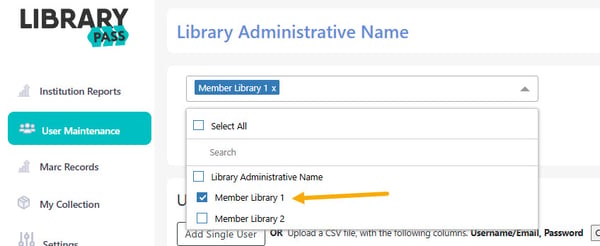
You can look at individual member account users by selecting the individual member account in the drop down.
Note: For more information on User Maintenance visits, check out this article.
How Do I Curate the Comics Plus Collection For My Member Accounts?
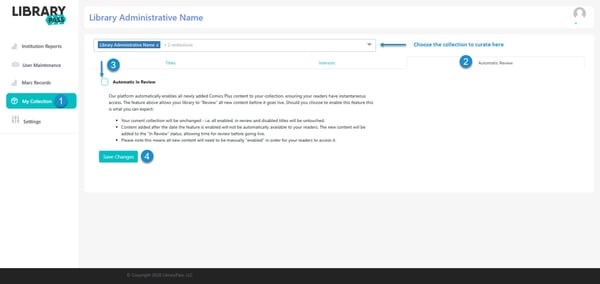
Administrators can easily manage the Comics Plus collection for all libraries or member accounts through the "My Collection" section. They have the flexibility to curate the collection broadly for all member accounts at once or customize selections individually for each account, depending on their community’s needs.
-
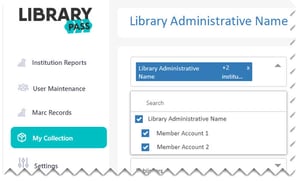
By default, all member accounts are selected. When the "Library Administrative Name" is chosen, it automatically selects all associated member accounts as well. This means any changes made will apply to all selected accounts.
-
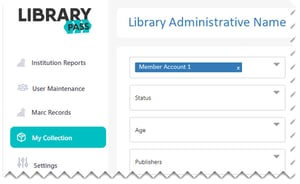
To curate the collection for an individual member account, select the member account you want to curate for. This indicates the changes you make will affect only the selected account.
Curating By Title
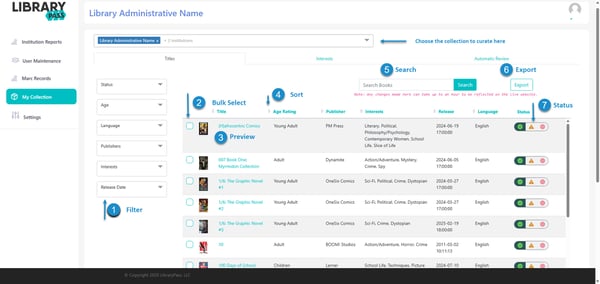
Once you have the account(s) selected you are curating for, you can filter and search through your members' titles to find those to curate.
Managing Interests
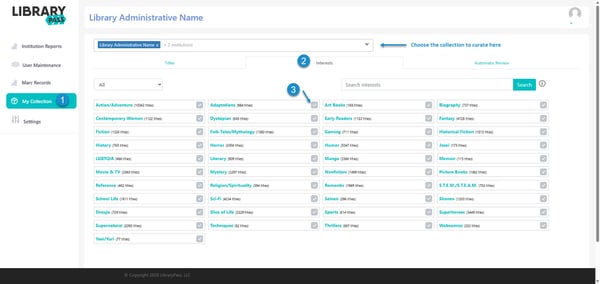
The interests area allows you to manage the interests that appear in your Comics Plus Collection for your readers. Choose the member account from the drop down to manage interests for one Member collection, or select all to manage all at once.
Note: More information about managing interests can be found here.
Managing Newly Added Content
The Comics Plus collection is always growing, with new titles added regularly from our trusted, library-friendly publishers. By default, new titles are automatically enabled for immediate access. If preferred, libraries can adjust settings to place new titles into an "In Review" status, allowing time for review before they go live. Use the dropdown to manage this setting for a single member account or select all to manage them all at once.
Note: More information about Automatic In Review can be found here.
Note: For more information, visit our Curation FAQs
How Do I Lock the Changes I Have Made To My Member Account(s) Collection?
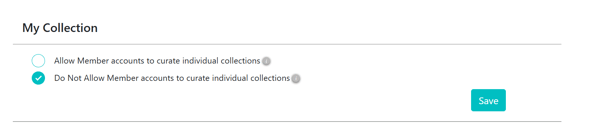
Under "Settings" you have 2 options for curation control listed under "My Collection".
-
Allow Member accounts to curate individual collections
-
This option allows you to make changes to the collection for your member accounts, but ultimately gives them complete control over these changes. When this option is selected you can enable and disable titles for you member accounts, but they can re-enable or disable any title they choose regardless of your changes. This empowers the individual account to make the final say on their collection.
-
-
Do Not Allow Member accounts to curate individual collections
-
This option gives the administrative account full control over the member accounts collection. When this option is selected, member accounts can view their collection and the status of each title, but they are not able to make any changes to a titles status (enabled/disabled)
-
Note: For additional information on settings, visit the following:
Not finding what you’re looking for?
Submit a ticket, and we’ll be happy to help!