

This article helps Library Admins change the visual theme of their Comics Plus site and answers common questions about the update.
How to Change Your Theme

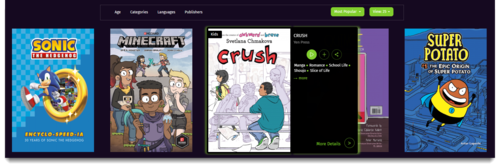
Switching between the Light and Dark themes is quick and easy.
Follow these steps to update your platform:
-
Log into your Comics Plus Admin Portal.
-
Click on the Settings tab.
-
Choose your preferred theme: Light or Dark.
-
Click Save.
Note: The change updates immediately in your admin portal. However, it can take up to 2 hours to appear on your patrons’ screens.
Frequently Asked Questions
Who will see the new theme?
Your entire Comics Plus site will reflect this change. All of your patrons will see the new theme when they log into their accounts.
Can patrons choose their own theme?
No. Library Admins have full control over the look of their collection. Patrons cannot change the theme on their individual accounts.
Do these themes apply to mobile apps?
No. The Light and Dark themes apply to the web experience only.
Are there functionality differences between the themes?
No. Both themes offer the same features and tools. The only difference is the color palette and overall visual feel.