

This article helps you to add, update, deactivate, or delete reader accounts.
Accessing the Comics Plus Admin Portal
Accessing the Comics Plus Admin Portal
-
Go to the Comics Plus Admin Portal.
-
Enter your admin username and password.
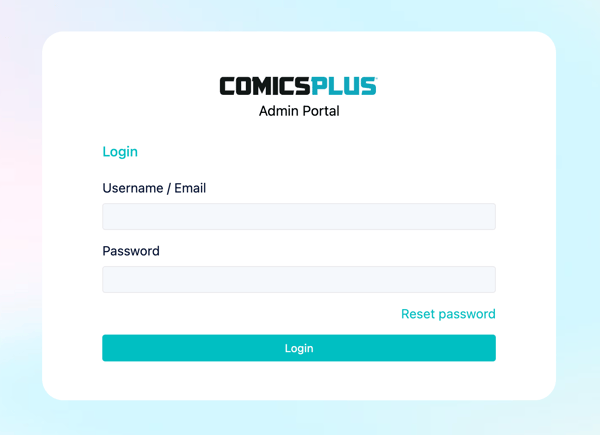
Missing your admin login details? Open a ticket to get your credentials right away.
Adding Reader Accounts
You can add readers one at a time or upload a large list all at once.
Add a Single User
-
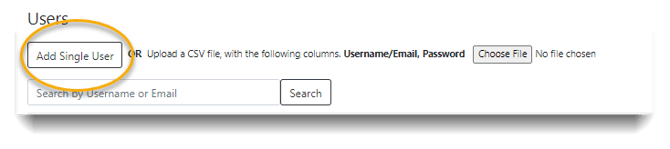
Go to the User Maintenance tab.
-
Click Add Single User.
-
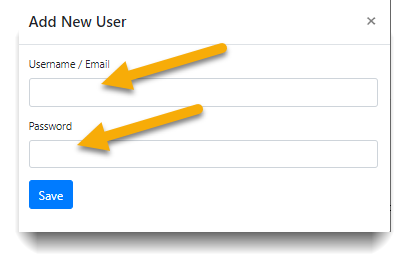
Enter the new username and password.
-
Click Save.
Mass Upload Multiple Users
-
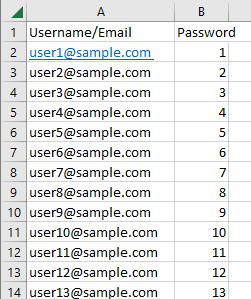
Create a CSV file with two columns: Username/Email and Password.
-
List your users’ information in these columns and save the file.
-
In the Admin Portal, go to the User Maintenance tab.
-
Click Choose File and select your saved CSV file.
-
Follow the on-screen prompts to complete the upload.
Updating Reader Accounts
Reset a Password
-
Go to the User Maintenance area.
-
Find the user who needs a new password.
-
Type the new password into the New Password field.
-
Click Update.
Deactivate or Reactivate a User
Deactivating an account blocks the user from logging in without deleting their data.
-
Go to the User Maintenance area and find the user.
-
Click the toggle switch in the Active column:
-
Green Toggle: The account is active and the user can log in.
-
Gray Toggle: The account is deactivated and the user cannot log in.
Deleting Reader Accounts
Warning: Deleting a user is permanent. If you want to temporarily block a user, use the deactivation steps above instead.
Delete a Single User
-
Go to the User Maintenance area.
-
Find the user you want to remove.
-
Click the Delete button next to their username.
Delete All Users
-
Go to the User Maintenance area.
-
Click the Delete All button.
-
Confirm your choice. This permanently removes all existing readers from the system.