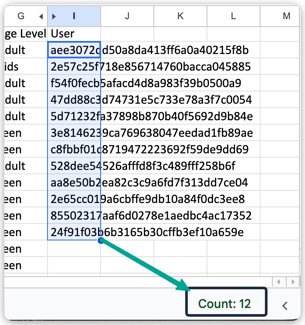
This guide explains how to find the exact number of unique users who borrowed content during a specific time period using your Comics Plus activity reports.
Part 1: Download Your Report
- Log in to your Comics Plus Admin Portal.
- Navigate to Institution Reports, then click on the Reports tab
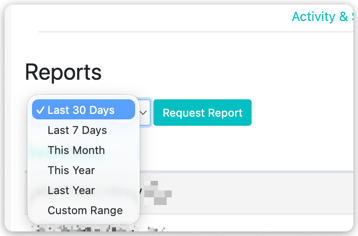
- Choose your desired timeframe from the drop-down menu, then click Request Report
- Once your report generates, download the file to your computer.
 Part 2: Prepare Your Data
- Open the downloaded report in your preferred spreadsheet program (such as Microsoft Excel or Google Sheets).
- Locate and highlight the User column.
- Tip: Copy and paste this column into a new, blank tab. This prevents you from accidentally changing the data in your original report.
Part 3: Count the Unique Borrowers
- Remove the duplicate names from your list so each user is only counted once:
- In Google Sheets: Click Data in the top menu, select Data cleanup, and click Remove duplicates.
- In Microsoft Excel: Click Data in the top menu and select Remove Duplicates.
- Highlight the rows left - both Google Sheets and Excel will show a Count at the bottom of the screen. This is the total of unique borrowers for this timeframe.